A1A Software Services DIY Web Design Marketplace
UserName:
Password:
HomeFeaturesCrane ListNewsTrainingForumsSupportMy Account
News and Updates View the 3D Lift Plan Update Log
August 27, 2010 - 3D Lift Plan Designer
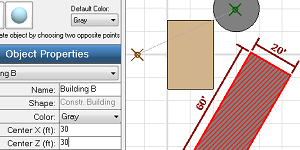
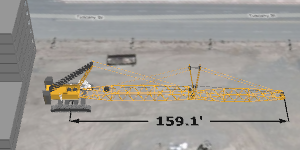
The 3D Lift Plan Designer is a two-dimensional jobsite editing tool which enables you to create more complicated lift plans in less time.  You can also set the crane location and load location by clicking on the jobsite.
August 10, 2010 - Basket and Choker Hitches
Basket and Choker hitches are now available.  3D Lift Plan calculates the leg height, sling length, and horizontal sling angles for single and double basket and choker hitch designs.
April 22, 2010 - Outrigger Loads and Crawler Loads
3D Lift Plan will automatically calculate Outrigger and Crawler Loads based on the weights and locations of the each part of the crane, including the current load and rigging weights.  To view outrigger or crawler load details, click the 'Crane Loads' link on the left-side menu during the lift-planning process.

For more information, View the Crane Loads tutorial.
January 28, 2010 - Import Images
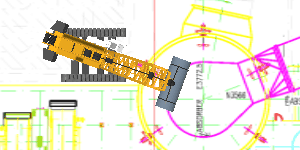
Upload any image for display on your jobsite, including 2D CAD drawings, Google Earth images, images from mapping programs or websites, or any photo or drawing you want displayed in your jobsite.  You can also add images to the object you are lifting.

To display an image on the ground, add a new object to your jobsite and select the "Ground" object type (Corporate Account required).  Then choose "Upload new image".   If you have a license to access all 3D Objects on 3D Lift Plan, then you will also be able to display images on any box, cylinder, or sphere in your jobsite, or on your load objects.
January 15, 2010 - Crane Mats
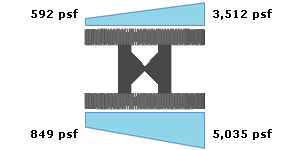
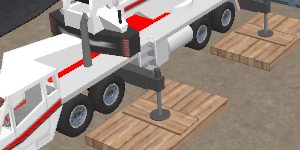
Add crane mats to your lift plans.  You can modify the design to use mats of any size and 3D Lift Plan automatically calculates ground bearing pressure below the mat and the amount of stress being applied to the mat to make sure your design is sufficient.
December 22, 2009 - DXF Export
The CAD Export feature now allows you to download a DXF version of your lift plans.
December 18, 2009 - Support for BS Contact and two-dimensional Plan and Elevation views
3D Lift Plan now supports the display of images with BS Contact.  An alternative to the Flux Player, BS Contact allows you to view orthographic (2D) Plan and Elevation views of your lifts.  To use BS Contact, go to your Preferences page and modify your X3D Browser option.  You should be prompted to download BS Contact when you open a lift plan.  If not, click here to visit the Bit Management website.

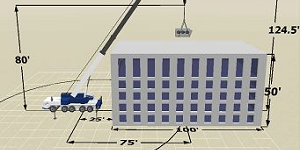
Once you have BS Contact installed, you can select an orthographic viewpoint by right-clicking the BS Contact window and selecting one of the orthographic views from the Viewpoints menu.  You can also select orthographic views as the default view for your lift plan using the "View" list box on the left side of the screen.  To correctly display dimensions in Elevation view, check the "Draw Text for Elevation View" checkbox on the Dimensions page.  You can adjust the y-offset values to position the dimensions where you want them and avoid overlap.

If you would like to continue using the Flux Player but print Plan and Elevation views, you can select BS Contact from the Options menu of the 3D Lift Plan Publisher.  When setting the 3d image to print, right-click and select the Viewpoint you wish to display on the printout.

The trial version of BS Contact is fully functional, but displays the BS Contact logo over the 3d image.  A license is required to remove the logo.
September 19, 2009 - Advanced Rigging
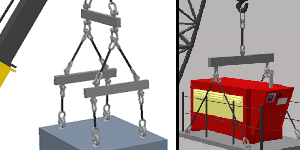
Advanced Rigging allows you to add any number of rigging components to your design, including shackles, master links, hooks, and lifting lugs. 

You can specify weight, capacity, and size information for each rigging component, or choose items from rigging manufacturer catalogs.
g
September 18, 2009 - New Feature: Add Text to Jobsites
August 18, 2009 - Dispatch
3D Lift Plan Dispatch is now available.  View a Demonstration (login required)

You can assign equipment, operators, and crews to jobs, schedule jobs including travel time, monitor permit requirements, view pending jobs for all cranes and employees, view past and future jobs for any customer, search jobs and customers, and do much more.


The Day-View Calendar lets you see all jobs on any day in a
timeline format, displaying travel time and time on the job.


The Dispatch Calendar displays detailed information for all pending jobs in one location.  View the job description, location, contact information, dates and times, estimated travel time, custom fields, and all the equipment, operators, and crews assigned to each job.
July 10, 2009 - Firefox support
3D Lift Plan now supports the Mozilla Firefox web browser.
June 9, 2009 - Snapshots
By saving Snapshots you can return to any point in your lift.  For instance, save a snapshot with the load placed on the ground, at a critical point, and at it's final location, then easily move between these points without needing to re-position the crane manually.  Snapshot tools are located below the left side menu when creating a lift plan.
May 29, 2009 - Multi-Crane Lifts
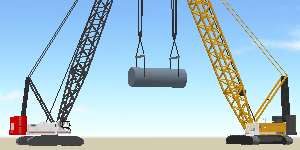
3D Lift Plan now supports cooperative multi-crane lifts.  As the primary crane moves, the trailing cranes automatically adjust to accurately simulate your lift.  Throughout the lift, the load on each crane is calculated.  The lift radius and chart capacity for each crane is also displayed at every point in the lift.  Tandem and trailing lifts are supported.
May 18, 2009 - Import Lift Plans
Now you can import the jobsite, load, rigging, and crane from a Lift Plan you have previously created.  To use this feature, select the "Import Lift Plan" button on the "Lift Plan Settings" page, which is the first page you see after creating a new Lift Plan.
May 12, 2009 - Lift Plan Viewer
Share your 3D drawings with clients and coworkers with the new 3D Lift Plan Viewer.  Simply click the "Share" link on the left side menu when you are designing a lift plan and you can link anyone to a 3D drawing of your lift.  Anyone viewing the page will see crane and load information along with any other details you want to display.

View a sample here: Lift Plan Viewer - Sample
May 7, 2009 - More Printing Options
From the 3D Lift Plan Publisher, select any of the various Layouts to print two, three, or four different images of your lift plan on a single printout.

To print a detailed image of your load and rigging, select the "Rigging Plan" option at the bottom of the window when positioning the 3d image for printout.
May 4, 2009 - Quick Search handles "Step" Obstructions
You can now specify multiple front obstruction when creating a jobsite with the Quick Search feature, enabling you to create more detailed jobsites in seconds.
April 11, 2009 - Hook, Block, and Parts of Line
On the Rigging Details page, you can now select multiple parts of line to support the crane's hook.  Also, a hook and block or headache ball are displayed to show a more accurate drawing of your lift.
February 9, 2009 - Lift Plan Worksheet
3D Lift Plan allows you to print a worksheet and checklist to distribute to everyone involved in your lift.  All the information about your lift is automatically filled out.  You can also type any information you want on to the form before printing to ensure a clear and easy-to-read form.

The link to the Lift Plan Worksheet can be found on the "Print" page of the lift plan process.
December 31, 2008 - Lift Plan Export
You can download the 3D drawings of your Lift Plans and load them into any CAD program.  After opening a Lift Plan, click the "Export" link on the left side of the screen, just below the "Print" link.  3D Lift Plan exports Lift Plans in VRML 2.0 format (*.wrl), which can be converted into any file format you need.
December 5, 2008 - Crane Groups
Now you can organize your cranes into groups.  When selecting a crane or choosing which cranes to search you will be able to select any Crane Group that you have created to help narrow down your selections.  Crane Groups are most useful if you have a large number of cranes or multiple yards where only some of your cranes are available to your sales team and lift planners.  You can create and organize Crane Groups by clicking the "Crane Groups" link on the My Account page.
December 1, 2008 - Corporate Accounts
Corporate Accounts allow multiple users to share Cranes, Lift Plans, 3D Objects, and other 3D Lift Plan features from multiple desks... even from different office locations.  Click here for more information.
November 14, 2008 - Lattice objects
Now you can add Lattice objects to your jobsites.

Simply select the "Lattice Section" object type on the Jobsite Obstructions page.
Crane Hot Line article...  "3D Lift Plan is the ‘Rolls-Royce’ of Planning Tools"
3D Lift Plan was featured in the July 2008 edition of the Crane Hot Line magazine.  Click here to read the article (PDF Document).
August 22, 2008 - 3D Load and Jobsite Objects
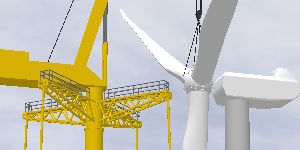
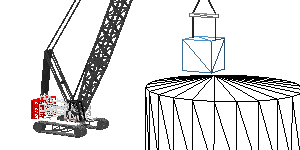
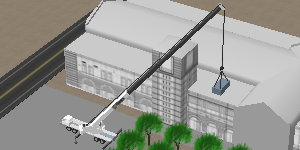
Now you can enhance your lift plans with detailed 3D Objects to create a realistic rendering of your jobsite. On the "Load Type" page, simply select the 3D Object option, choose the object you want to lift, then scale it to any size.  To add a detailed object to your jobsite, select the "3D Object" shape on the Jobsite Obstructions page.
June 12, 2008 - Quick Lift Setup
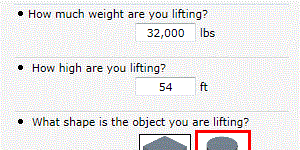
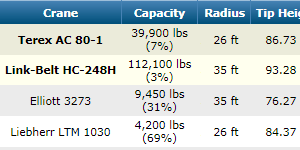
The new "Quick Lift Setup" feature allows you to answer just a few simple questions to generate a complete lift plan.  From the "Lift Plan Settings" page, click the "Quick Lift Setup" button and you're on your way.  All that is required is the load weight and radius, or you can add front, side, and rear obstructions.  The "Quick Lift Setup" allows novice users to create lift plans in seconds.
June 11, 2008 - Instructional Videos
Visit the Support page to view instructional videos about using the 3D Lift Plan website.  The instructional videos are a great way to familiarize yourself with the steps involved in creating a lift plan.
March 19, 2008 - 3D Lift Plan User's Manual
You can download or print out the 3D Lift Plan User's Manual, which explains all the tools on the 3D Lift Plan website.  You can find it on the Support Page.
March 18, 2008 - New object type.... "Building Under Construction"
Lifting on top of a building that is under construction?  Now you can easily show the work-in-progress.  Simply select the "ConstrBuilding" object type on the Jobsite Obstructions page.
March 2008 - 3D Lift Plan unveiled at CONEXPO-CON/AGG
Link-Belt News Release:

Link-Belt unveils industry first Web-based Lift Planning tool

Lexington, KY (March, 2008) - Unveiled at ConExpo 2008, Link-Belt Cranes announced an industry first, web-based 3D Lift Planning tool. The online program gives Link-Belt crane owners accurate, timely 3D lift planning capability anywhere in the world, 24/7. The 3D Lift Planning tool is a simple, straightforward and accurate lift planning application available through Link-Belt Preferred, Link-Belt’s customer support program.

The 3D Lift Plan application was designed to be highly user friendly with stepLifting on top of a building that is under construction?  Now you can easily show the work-in-progress.  Simply select the "ConstrBuilding" object type on the Jobsite Obstructions page.-by-step instructions. It requires no CAD programs, extensive updates or training. It’s accessible from any computer location and offers safe, secure storage of any lift plan, complete with metric or English units, load and rigging data and jobsite obstructions.

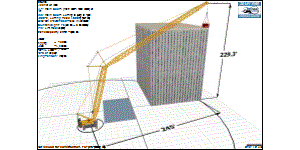
During the simulation, the actual lift is viewed with cutting-edge, high quality 3D graphics that create detailed jobsites complete with views of changing machine configurations, load charts, landscape and site obstruction items. Once a plan is set, an engineer-scale lift plan, complete with notes and logos can be printed from any angle to document the Lift plan.

In recent years, Link-Belt’s Voice of the Customer (VOC) pursuits revealed that users wanted one bucket in which to put all makes of their cranes. It must also be current information, available at all branch, jobsite locations 24/7. It must be 3D graphically accurate, printable with documentation and exportable to any CAD program. 3D Lift Plan meets these objectives and makes it easy for the crane user.

Other industry Lift planning programs are CD based and must be manually updated with new features and data at each location, individually. They generally require software purchases and weeks of long training. And they generally focus on only one manufacturer’s models.

3D Lift Plan is updated online 24/7 as needed. And it accepts all manufacturer’s models and is simple, intuitive, requiring no special training to operate. In the near future, 3D Lift Plan will feature 4 languages, tandem picks and various other rigging and block configurations.

Link-Belt commissioned A1A Software, Jacksonville, Fla to develop this industry first web based application called 3D Lift Plan. Link-Belt has cooperated with A1A Software in developing the web concept and has supplied crane information for all of its crane.

Link-Belt Construction Equipment Company, with headquarters in Lexington, Kentucky, is a leader in the design and manufacture of telescopic boom and lattice boom cranes for the construction industry worldwide.

Downloads   Follow 3D Lift Plan  
User's Manual Sign up for our Newsletter
Critical Lift Worksheet 3D Lift Plan Blog
3D Grid Worksheet Facebook